
zbyld scan › How to use
How to use zbyld scan
Scan paper to a PDF and read any PDF on your phone. Screenshots are from a phone in the dark theme; the app follows your phone's light or dark setting.
- The Home screen
- Scan a document
- Review and save
- Share a PDF
- Read a PDF
- Open a PDF from another app
- Favourites and the Recents list
- Delete a scan or remove a PDF from the list
- Password-protected PDFs
- Settings, privacy and licences
- Phones and tablets
- Troubleshooting and FAQ
1. The Home screen
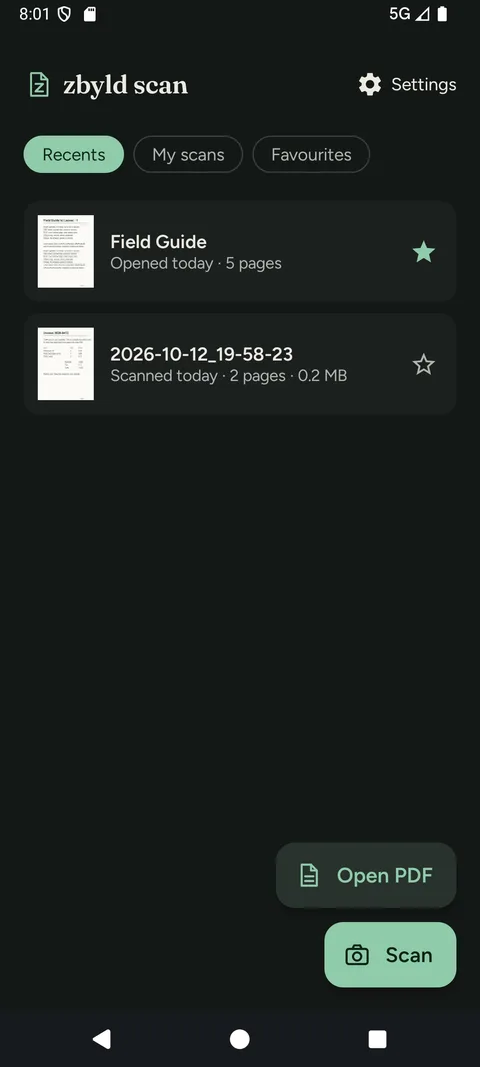
Home is where the app opens. It lists the files you've scanned or read, newest first (up to 50).
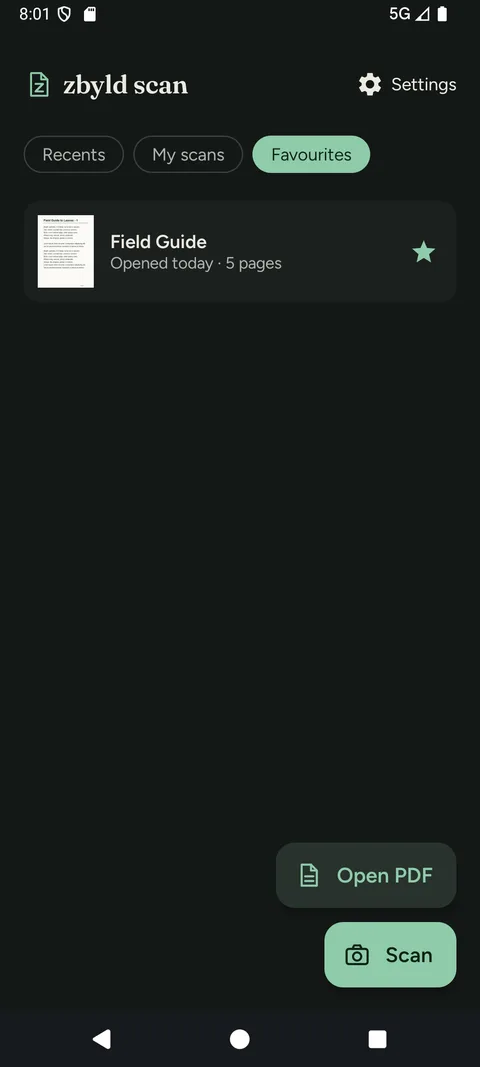
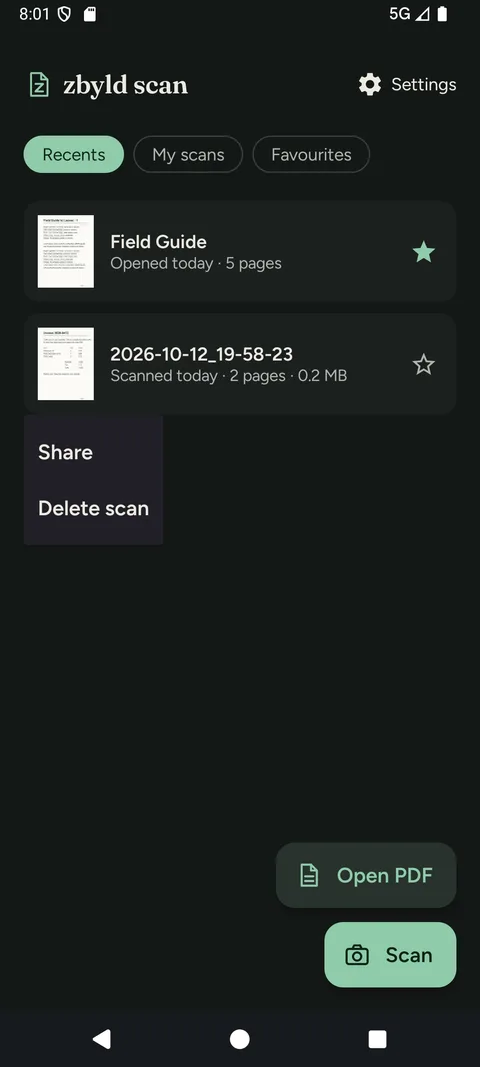
- Recents / My scans / Favourites. The three chips under the title filter the list. Recents shows everything, Favourites shows files you've starred, and My scans shows only documents you scanned with the app. The app remembers which chip you used last.
- Star. The star on the right of each row adds or removes a favourite.
- Scan. The green button at the bottom is always one tap away.
- Open PDF. Opens any PDF stored on your phone.
- Settings. Top right.
2. Scan a document
- On Home, tap Scan. The document scanner opens. zbyld scan doesn't ask for camera permission; scanning uses Google ML Kit's document scanner, which provides its own camera screen.
- Hold the phone over the page so the whole page is in view. The scanner can detect the page edges and capture for you, or you can tap its shutter.
- Scan more pages if you need them, adjust a page in the scanner (for example crop, rotate or change the look), and finish when you have all your pages.
- The scanner can also add pictures you already have from your gallery. zbyld scan never gets access to your whole photo library, only the pictures you choose.
The scanner is Google's, so its buttons and wording can differ between phones and versions, and zbyld scan can't change how it looks. It handles up to 50 pages in one go; you can scan more afterwards with Add more on the next screen.
Tips for a good scan
- Put the page on a flat, plain surface with even light.
- Keep the whole page in the frame.
- Check each page in the scanner's preview before you finish. Once you leave the scanner you can delete a page but not re-edit it.
If the scanner doesn't open
zbyld scan tells you why. The scanner may need an internet connection the first time it's used, it needs Google Play services, and it isn't available on phones with very little memory (under about 1.7 GB).
Scanning uses Google ML Kit. For how Google handles data, see Google's ML Kit data disclosure.
3. Review and save
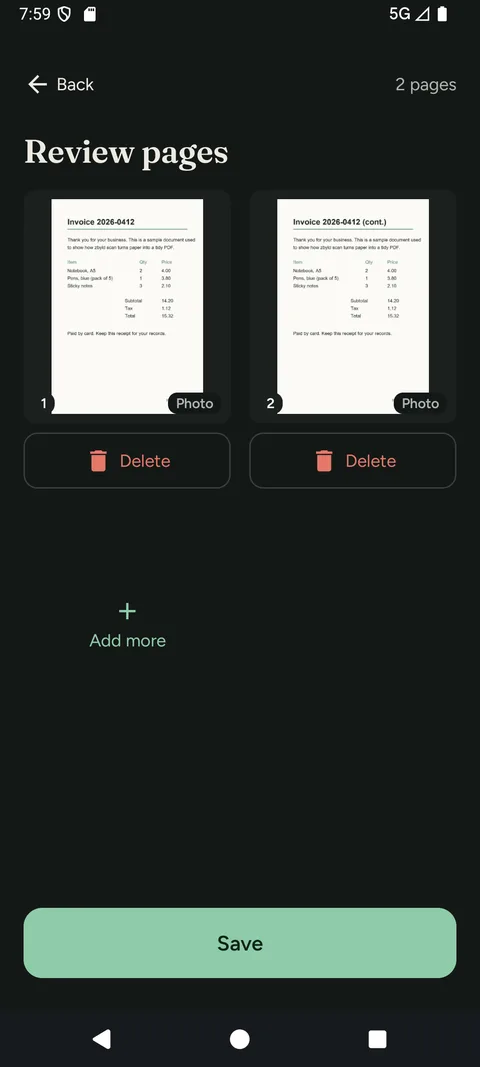
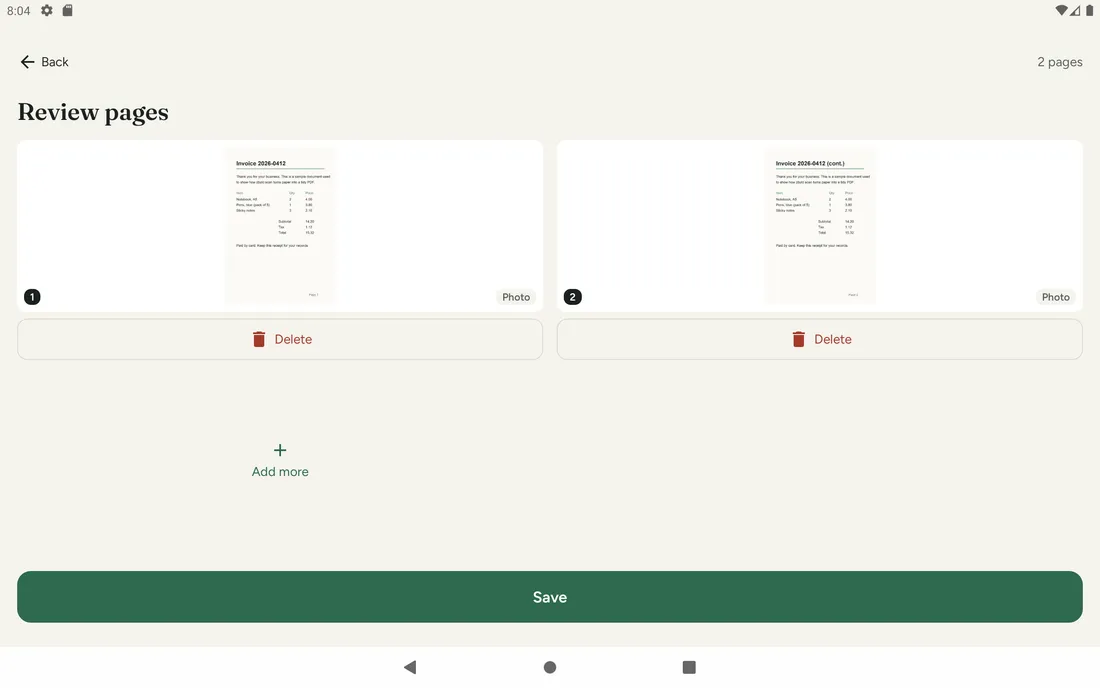
When you finish in the scanner you see Review pages: every page as a card, two to a row, with its page number at the top left.
- Tap a page to see it larger. Tap outside it, or press Back, to close.
- The red bin at the top right of a card removes that page, with an Undo bar.
- Add more opens the scanner again and adds new pages after these.
- Reorder changes the page order (see below).
- Home (top left) leaves without saving. If you have pages, the app asks you to confirm before discarding them.
- Save continues to the Save sheet.
Pages are kept in the order the scanner gave them, until you reorder them.
Reorder pages
- Press and hold a page, or tap Reorder next to the title.
- Tap pages to select them. You can select a run of pages that sit next to each other: with one page selected, tap another to select everything between them; tap the page just before or after your selection to add it; tap an end of your selection to drop it. Tapping a page that isn't next to your selection starts a new selection from that page.
- Tap Up or Down to move the selected pages one place earlier or later. Repeat as needed. A button is greyed out when the pages can't go any further.
- Tap Done to keep the new order, or Cancel (or press Back) to put the pages back as they were.
While reordering you can't delete pages, add more or save.
The Save sheet
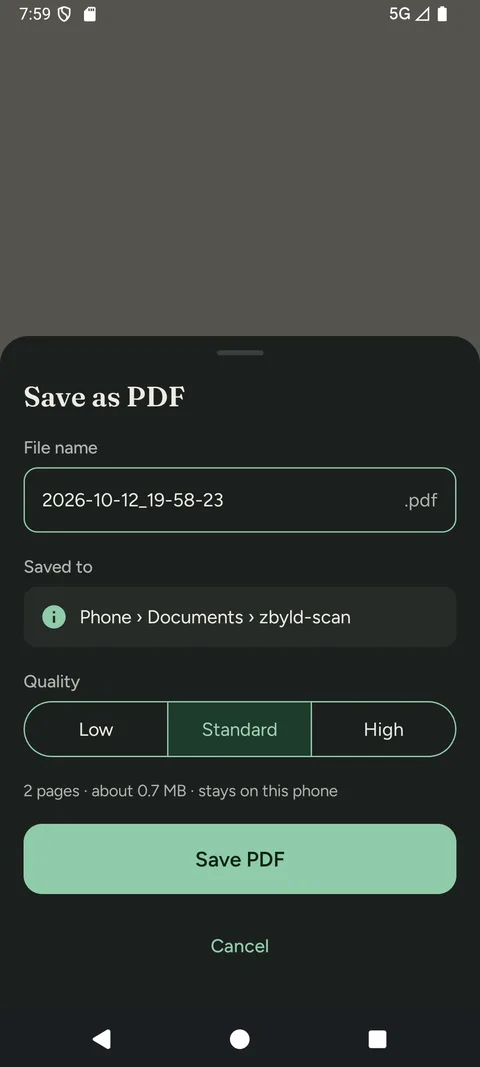
- File name. Pre-filled with the date and time (for example 2026-10-11_18-02-45). Change it if you like;
.pdfis added for you. - Saved to. Scans are always saved in Documents › zbyld-scan on your phone. You don't need to grant any storage permission.
- Quality. Low, Standard (the default) or High. Higher quality looks sharper but makes a bigger file. A line at the bottom shows the page count and estimated size, and updates as you change quality.
- Save PDF creates the file. Cancel goes back.
Saved
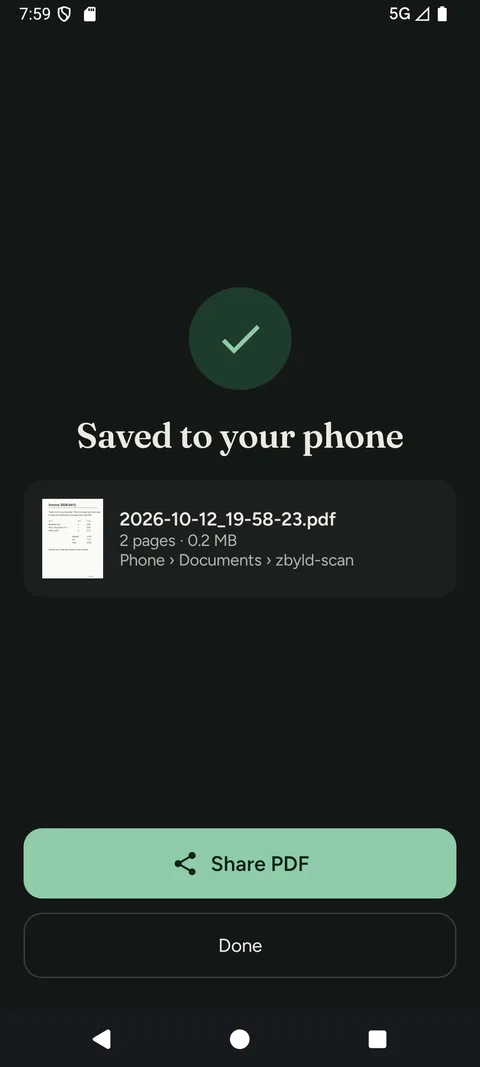
The confirmation shows the file name, page count, size and location. From here:
- Share PDF opens Android's share sheet.
- Done returns to Home, where the new scan is at the top of Recents.
4. Share a PDF
There are three ways to share:
- from the Saved screen, tap Share PDF;
- from the reader, tap the share icon in the top bar;
- from Home, press and hold a row and choose Share.
Sharing opens the standard Android share sheet: choose email, a messaging app, cloud storage, and so on. A file only leaves your phone when you do this.
5. Read a PDF
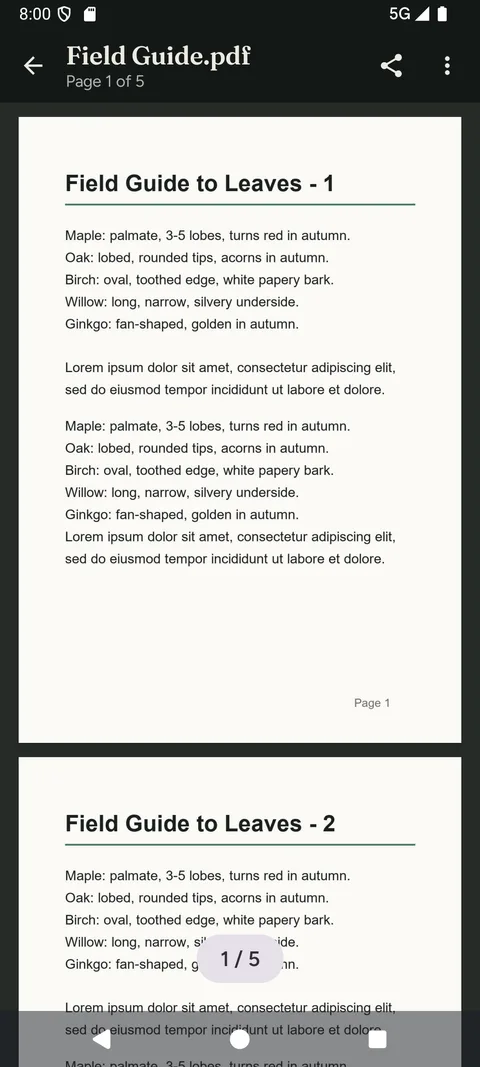
Tap any row on Home to open it in the reader.
- Scroll to move through the pages (continuous mode, the default).
- Pinch with two fingers to zoom, and drag to pan around a zoomed page.
- Tap the page to hide or show the top bar and the page indicator, for a clear view. Tap again to bring them back.
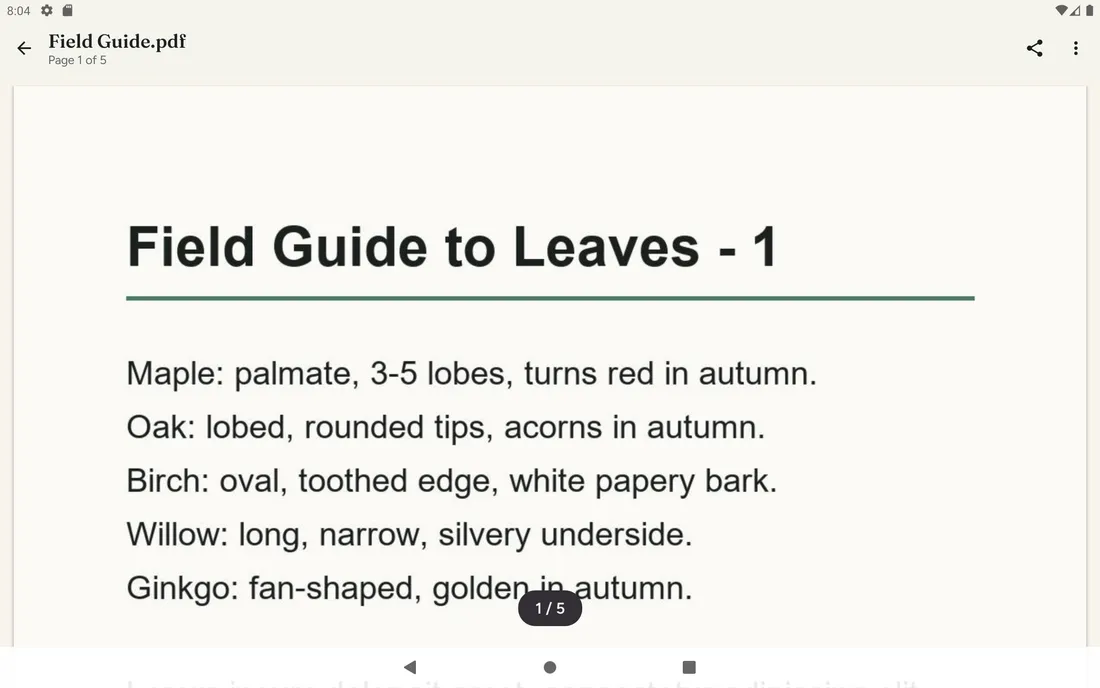
- The top bar has Back, the file name and page count, Share, and the ⋮ overflow menu.
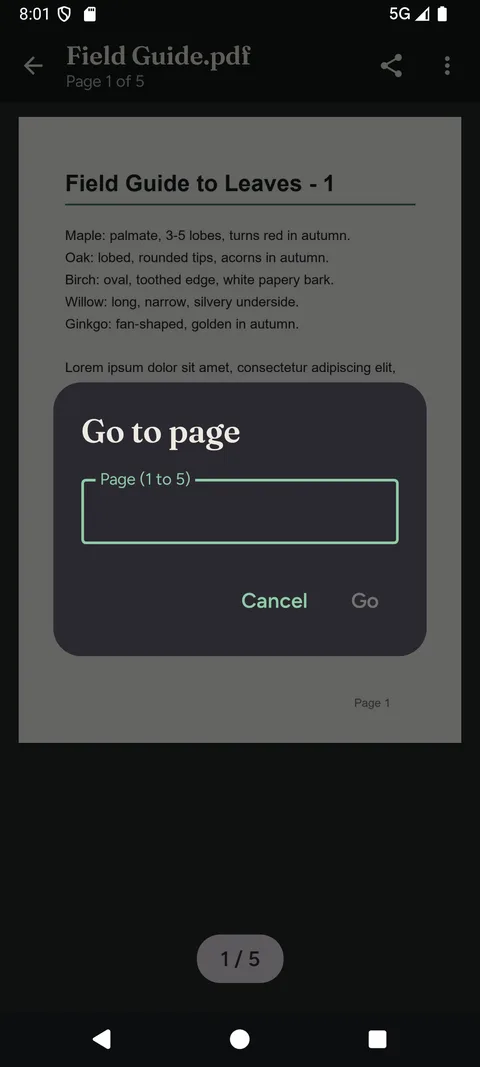
- The page indicator (for example 1 / 5) jumps to a page when tapped.
The reader remembers, for each file, the page you were on and your view mode. Reopen it later and you're back where you left off.
View modes
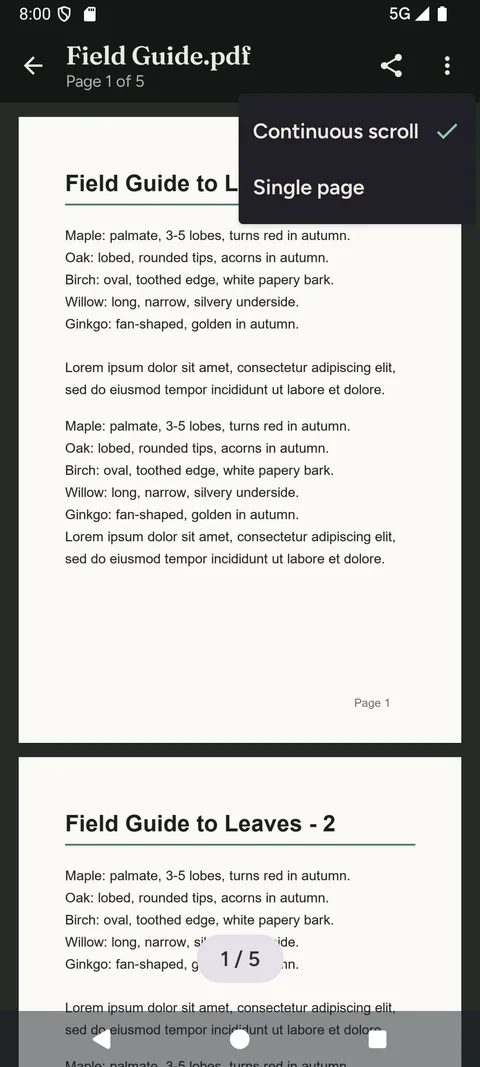
Open the ⋮ menu and choose:
- Continuous scroll. All pages in one long scrolling column.
- Single page. One page at a time; swipe left and right to turn pages. Good for forms and slides.
Go to a page
Tap the page indicator (1 / 5), type a page number, and tap Go.
6. Open a PDF from another app
zbyld scan reads any PDF on your phone, whether or not you scanned it.
- From inside the app: on Home tap Open PDF and pick a file with Android's file picker.
- From another app: in your email, browser or file manager, open a PDF and choose zbyld scan from the “Open with” list.
PDFs you open stay where they are; the app doesn't copy them. It only remembers the file's name, size and your place in it, on this phone, so it can appear in Recents. If the original file is moved or deleted, or access to it ends, the app tells you it can't reach the file. Open it again from the app it came from.
7. Favourites and the Recents list
- Tap the star on any row to make it a favourite; tap again to remove it.
- Tap the Favourites chip to see only starred files.
- The My scans chip shows only documents you scanned in the app.
- Recents keeps the latest 50 files. Older rows drop off the list; your files themselves are not deleted.
8. Delete a scan or remove a PDF from the list
Press and hold a row on Home.
| Row type | Menu choices | What it does |
|---|---|---|
| A scan you made | Share, Delete scan | Delete scan removes the PDF from Documents › zbyld-scan and from the list. A bar appears at the bottom with Undo. Tap it straight away if it was a mistake. |
| A PDF you opened | Share, Remove from list | Removes the row only. The PDF itself is never deleted, because it belongs to another app. |
You can also delete a scan from inside the reader (the bin icon in the top bar, shown for your own scans only). That asks you to confirm first, because it permanently deletes the file.
9. Password-protected PDFs
If a PDF is locked, the app asks for its password when you open it. The password is never stored, so you'll be asked again next time. The button is disabled until you've typed something.
Opening password-protected PDFs needs Android 15 or later, or Android 11–14 with the latest system PDF extension (SDK Extension 13). On other devices a locked PDF can't be opened here, and the app says so.
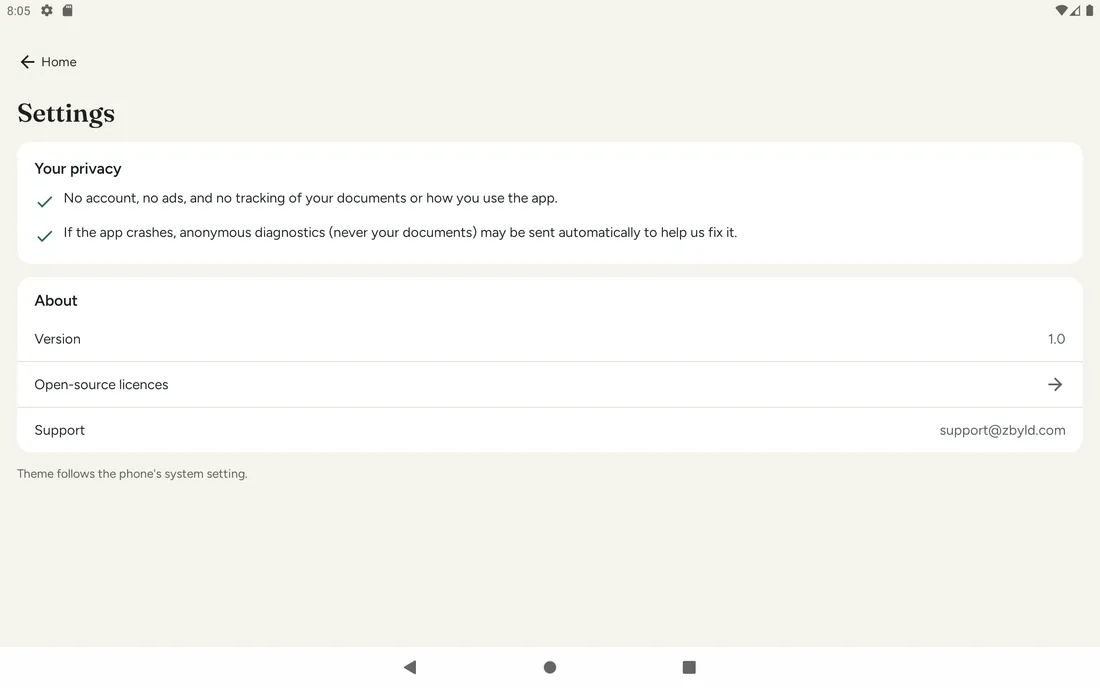
10. Settings, privacy and licences
Tap Settings at the top right of Home.
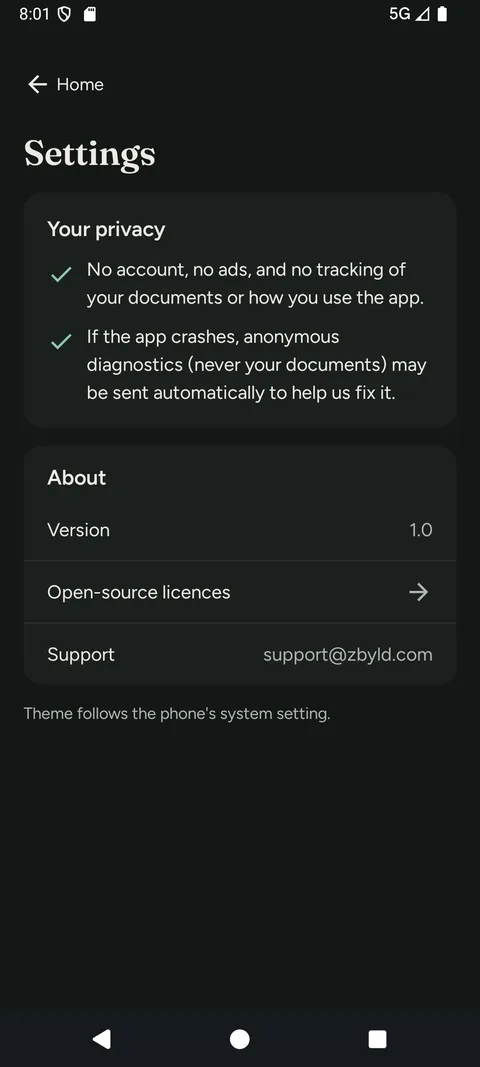
- Your privacy. A plain-language statement: no account, no ads, no tracking of your documents or how you use the app. It also says that scanning uses Google ML Kit.
- Crash reports. If the app crashes, anonymous diagnostics (never your documents) may be sent automatically to help fix the bug.
- About. Version number, Open-source licences, Google ML Kit data disclosure (opens Google's page about how ML Kit handles data), and Support (an email link).
There are no other settings; the theme simply follows your phone's light or dark setting. Open-source licences lists the open-source software the app is built with, including the full licence text for the bundled fonts.
11. Phones and tablets
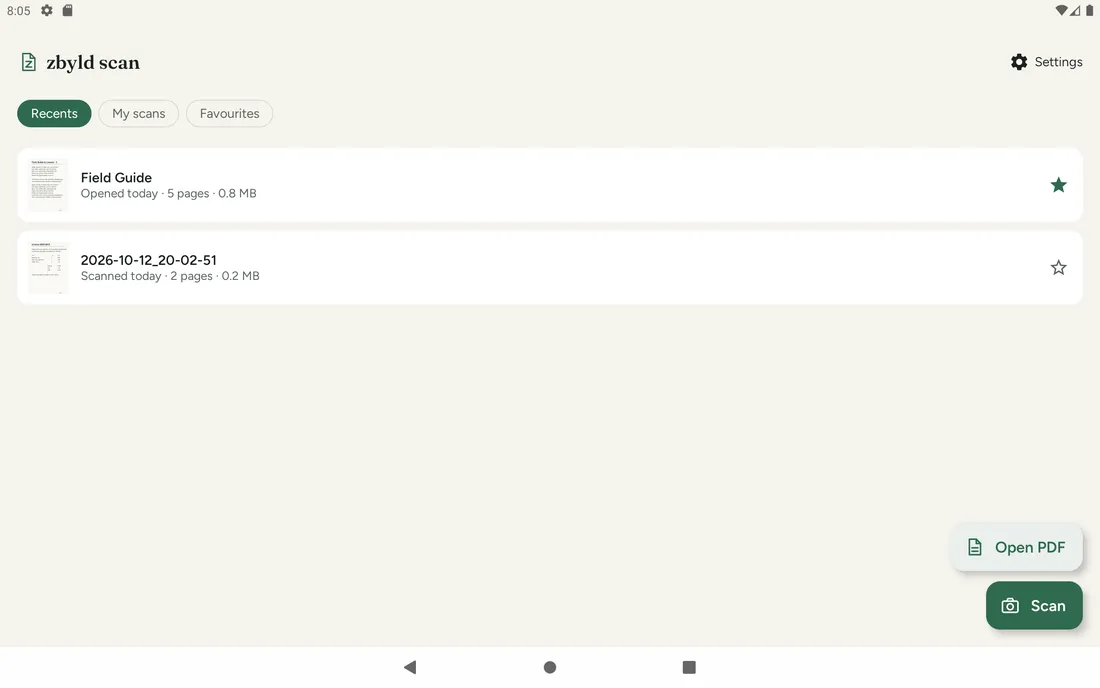
The same app runs on phones and tablets, in landscape and portrait. On a tablet the screens use the extra room; for example, the reader shows pages at full width.
12. Troubleshooting and FAQ
The scanner won't open.
It may need an internet connection the first time it's used, and it needs Google Play services (installed and up to date). It isn't available on phones with very little memory. zbyld scan shows a message saying which applies; try again once you're online.
Where are my scans?
In your phone's Documents › zbyld-scan folder. Any file manager will show them, and other apps can open them from there.
The file is too big to email.
Scan again with Low quality on the Save sheet, or scan fewer pages per document.
A PDF in Recents says it can't be reached.
The file was moved or deleted, or the app that gave access no longer allows it. Open it again with Open PDF, or from the app it came from.
Why does it ask for a password every time?
For your safety the app never stores PDF passwords.
Does the app need an account or internet access?
No account, ever. Reading and saving PDFs work offline. zbyld scan's own network use is anonymous crash reports. The scanner is Google ML Kit's and may need a connection the first time it's used; see Google's ML Kit data disclosure for how it handles data.
Can the app crop, rotate or enhance scans, or detect page edges?
Yes, inside the scanner, before you continue to Review. After you leave the scanner, pages are saved as they are; you can delete a page but not edit it.
Where do I get help or report a problem?
In the app, Settings › About › Support opens an email to support@zbyld.com. You can also email us directly at support@zbyld.com.